FAQs
Whether you're new to the Las Vegas companion app FAQ on budget tracking or seeking advanced tips in our Las Vegas companion app FAQ for comp management and receipt capture, these entries cover everything from agenda setup to accessing community deals.
Dive into the Las Vegas companion app FAQ sections below to resolve issues quickly, ensuring your next trip is seamless and optimized—because at VESPER, our Las Vegas companion app FAQ is designed to empower you with insider knowledge for ongoing value and smarter planning.
You can invite one person to any single trip (no subscription required). They’ll get full access to the shared Agenda, Wish List, Notes, Deals/Tips, and Big Wins from 30 days before your trip start date until 7 days after the trip ends. Trips are limited to 14 days max. They’ll see the paywall but can cancel and still join your trip.
You can invite one person to any single trip (no subscription required). They’ll get full access to the shared Agenda, Wish List, Notes, Deals/Tips, and Big Wins from 30 days before your trip start date until 7 days after the trip ends. Trips are limited to 14 days max. They’ll see the paywall but can cancel and still join your trip.
Go into 3 dot menu in top right hand corner of any screen. Select Trips. The hit + New Trip. Enter title name, dates, and select which app features you want to turn on or off (Agenda, Spending, Gambling). Then select if you want to use your last completed trip to copy over ALL or only COMPLETED Agenda, Wish List, Trip Notes, and Comp Balances into your new trip. Then enter your trip spending and gambling budget numbers. Then optionally select your Comp Program, then enter your starting Comp Food & Beverage Credit and Free Play Credit. Then hit Create Trip.
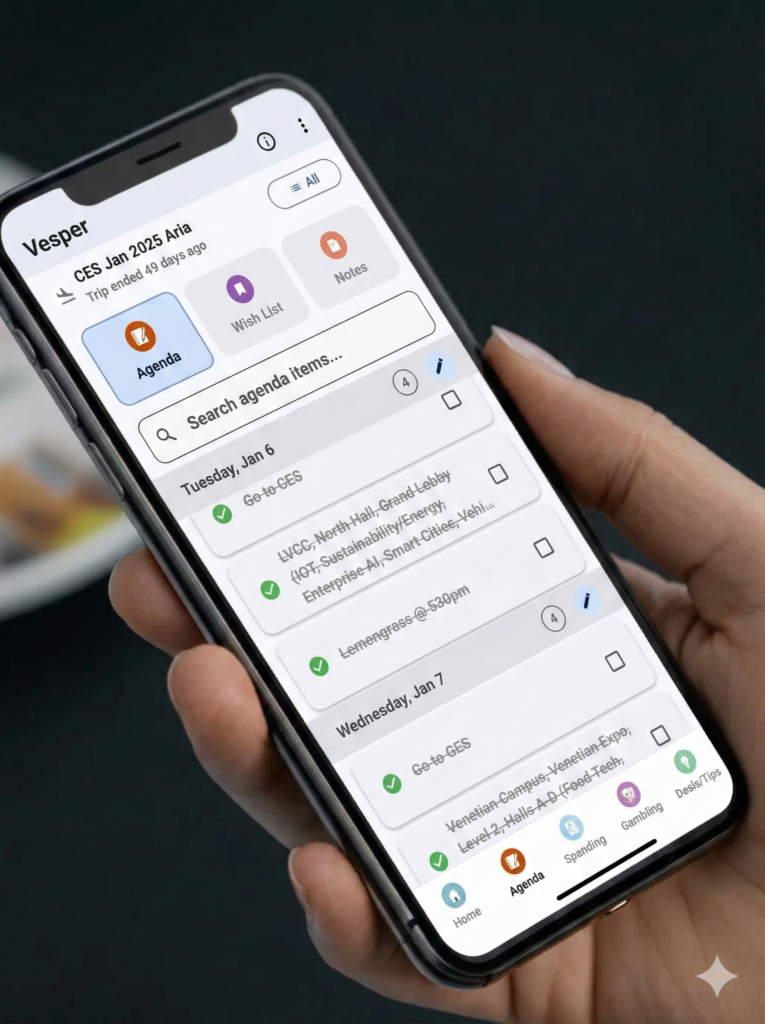
Select the Agenda option on the bottom of the screen Nav Bar. At the top of the screen, select either Agenda, Wish List or Notes (trip notes/note pad). Hit the pencil to quickly make entries. If you tap any Agenda or Wish List item, that will mark it completed. If you select one or many items by tapping the square on the right, you can then an ACTION button will show at the top of the screen and you can MOVE, COPY, or DELETE items.
During or at the end of each day, go to the GAMBLING option found on the bottom of the screen Nav Bar. Inside the Daily Status card, you can toggle between saying a grid of your daily gambling or a graph. Below that you can see or enter any Big Wins. If you tap the pencils on the Freeplay, Tier Credits, and Reward Points cards, you enter your current balances.
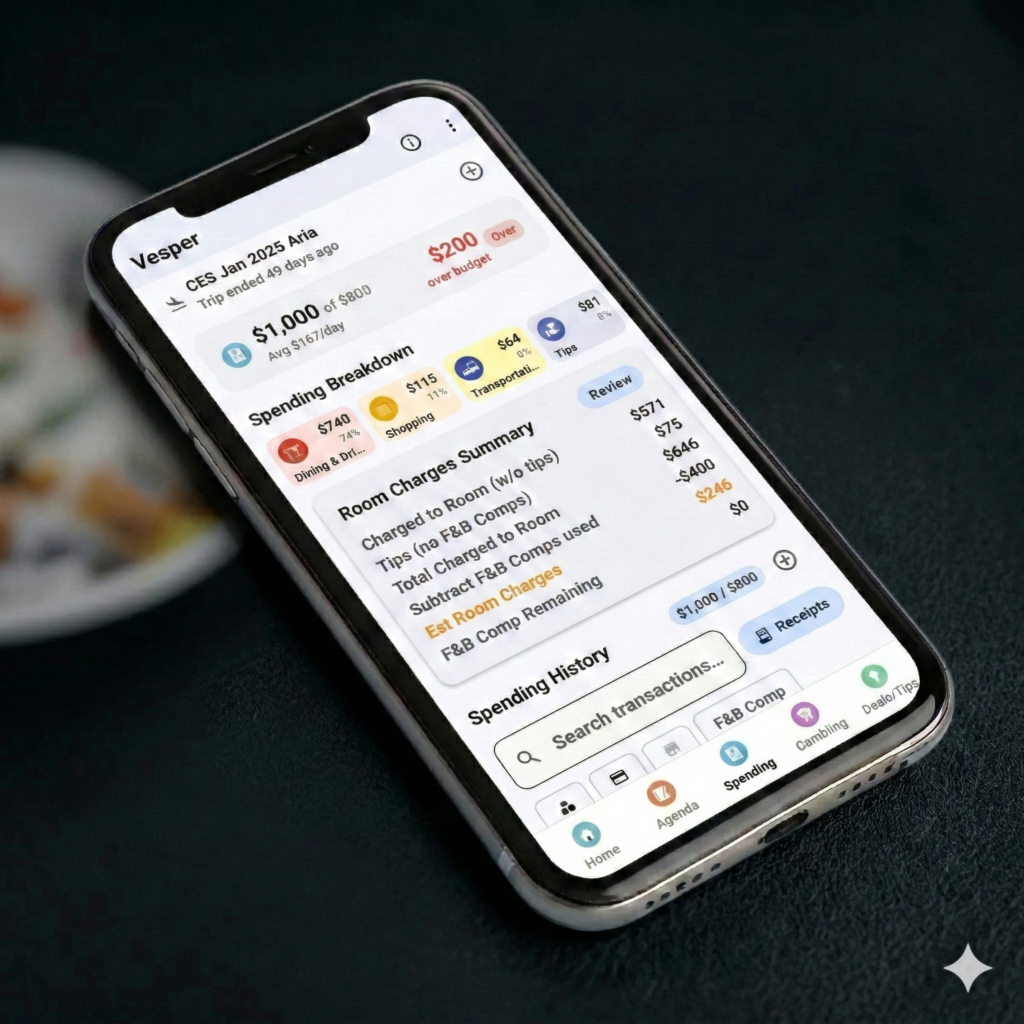
Select Spending on the bottom of screen Nav Bar. You can see your trip spending status at the top. Below will be your spending by category. If you tap any one of the category boxes, the spending transactions at the bottom of the screen will be filtered on that category. Below you can see your current Room Charges Summary which will show you what your current room charges should be, including your use of your food and beverage credits. Remember, tips are not eligible for F&B Credits! Below you will see a Receipts button. If you tap that, you can either quickly go through all the photos of your receipts or download all your spending and receipts into a PDF report. Below are your spending transactions. If you tap any one, you see and edit the transaction.
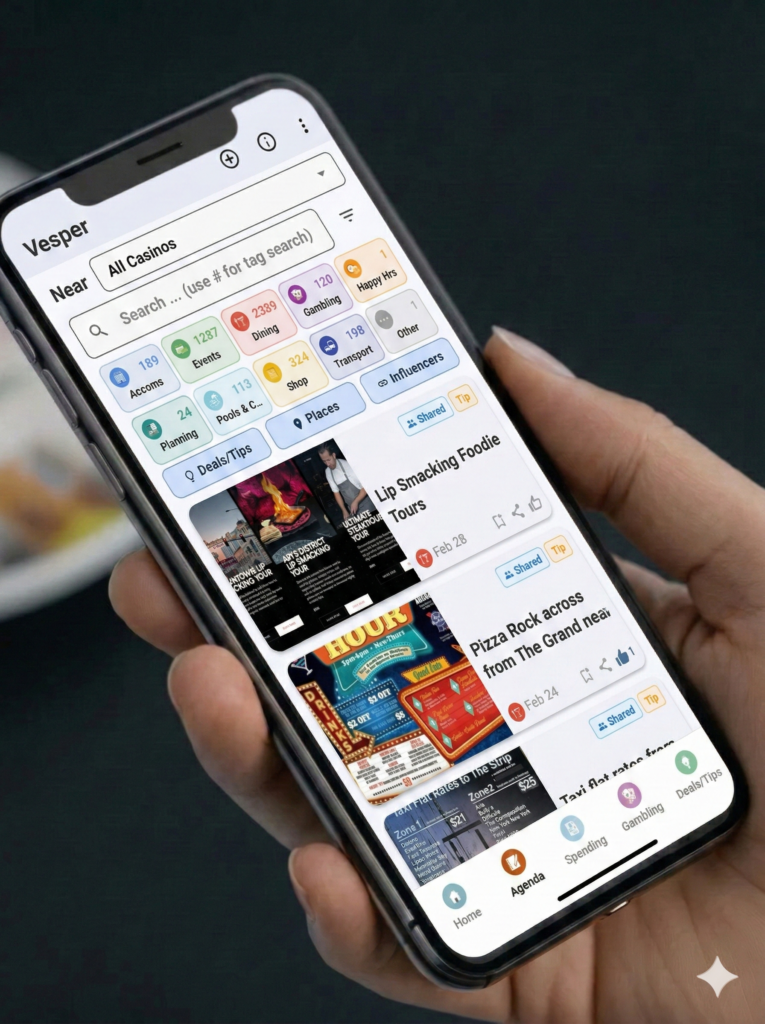
Go to the Deals/Tips option on the bottom of the screen Nav Bar. You will see all the current deals and tips. If you select a Casino at the top of the screen, you then see all the “nearby” deals, tips, places, and Vegas influencers. You can also search by keywords. Below the search, you can tap any one category and filter results. You an also filter on deals/tips, Places, or Influencers. For any deal, tip, place, or influencer, you can Add that entry to your Agenda, Wish List, or Trip Notes. That will put a short entry in place, that you can tap later and pull up the details of the deal, tip, place, or influencer. There is also a share icon you can use to share an item.
On the Home screen and the Gambling screen, you will see a Big Wins card. Hit the + button to add a Big Win. Then if you tap a Big Win entry, you can then edit it, share it as a community note, or hit the share button and share it with your friends and family!
Go to the Spending screen and look for Room Charges Summary. You will see a summary of your current room charges and if you hit the REVIEW button, you will see each room charge.
On the Spending screen, in Spending History, you will see a Receipts button. Tap it and you can either quickly view the photos of all the receipts you have captured or download all your spending transaction with photos of your receipts into a single PDF report.
o to the Deals/Tips screen and hit the + sign in the top right hand corner. Follow the screen and enter your note and if you want to share it, turn on Share with Community.
The Agenda is meant for you to have a quick check list of things you want to do Before Your Trip, each day of your trip, and After Your Trip. Your Wish List are items you want to save in case you have more time, win big, or want to try something different. Trip Notes are for you to quickly jot down a note or reference something to quickly remember like shopping items.
At the of your screen is your current trip. One quick tap will take you to the Edit Trip screen to make any changes. If you long press on the trip header, you will be taken to the Trips screen where you can add a trip or select another trip to manage. You can only manage one trip at a time. To select a trip to manage, long press on the trip.
From the Home screen you can tap the pencil on the top of screen Trip Spending box or you can go to the Spending Screen and hit the + button beside the Spending History section in the middle of the screen. In order to track your hotel bill and use of Food and Beverage Comps, make sure to select when you “charge to your room”. Make sure to enter the tip amount separate from the total bill, as tips are not covered by the F&B Comps. If you can then take a photo or attach a photo of your receipt.
At the top of each primary screen is a circle with a ? in it. If you tap that, a screen pops up telling you what you can do on that screen